Your vault, with room to work.
Some things are easier with a keyboard and a bigger screen. Open VeraLocker in your desktop browser to organize home records, update family documents, or tidy up credentials.
Your phone keeps the vault. Your desktop gives you room to work.
Requires VeraLocker Pro, an unlocked phone, and an internet connection on both devices. No desktop installation or separate account.
Your desktop
Read, edit, and organize
End-to-end encrypted
Your phone
Hosts your vault and keeps its key
The desktop workspace
Your vault, with room to spread out.
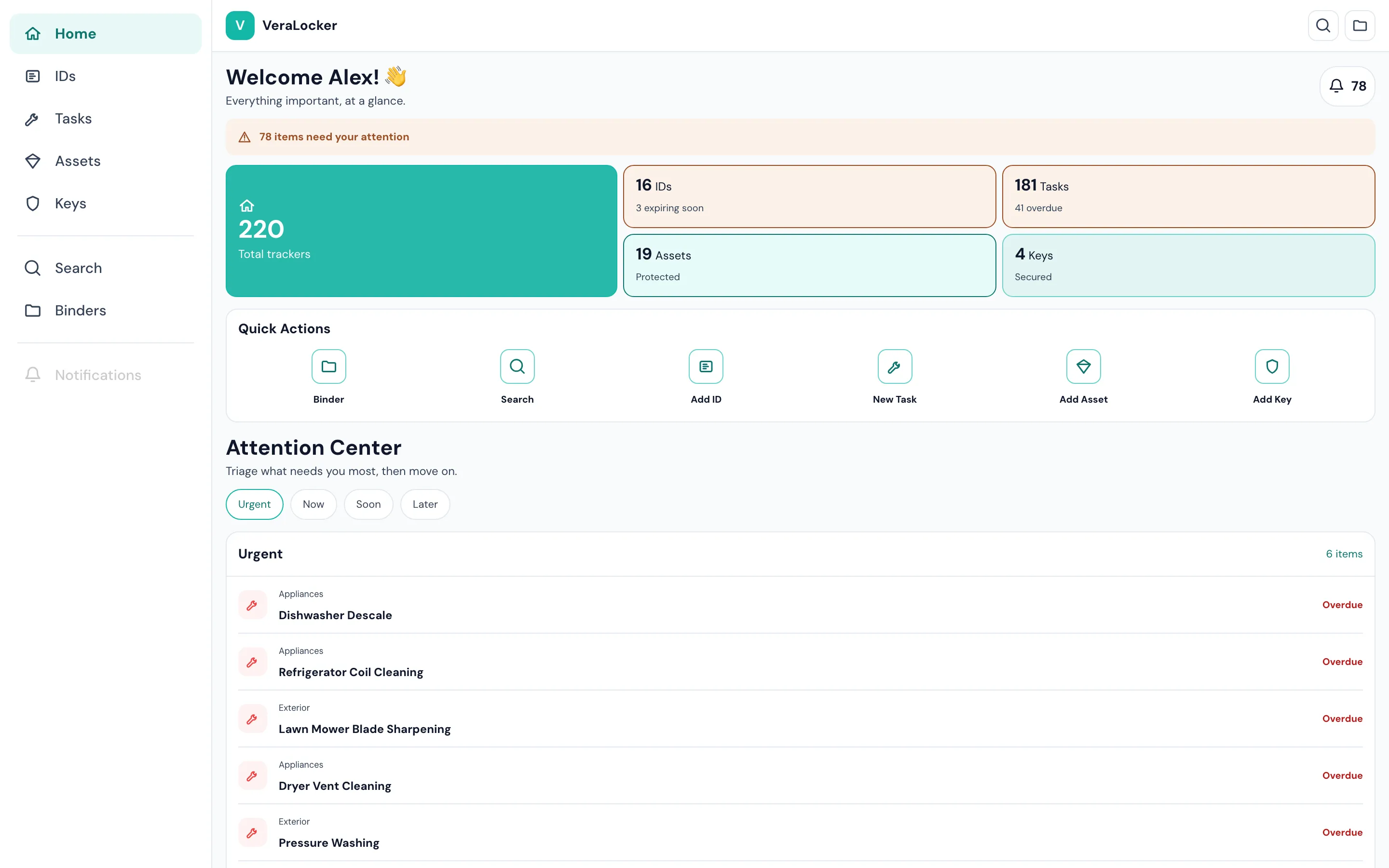
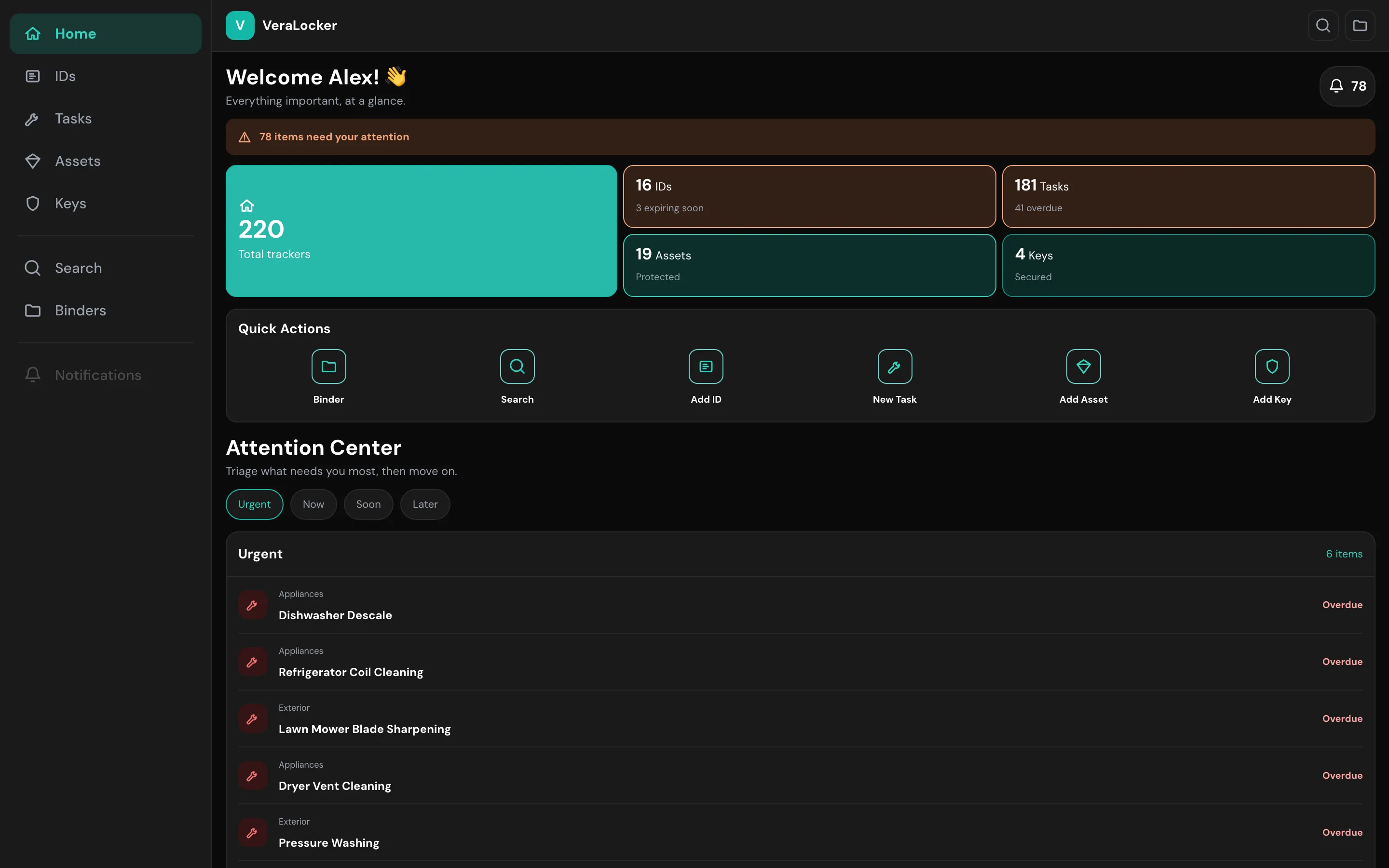
Make space for the details
Less typing on your phone. More getting things in order.
Find the record you need
Search titles, notes, and identifiers across your vault. Look up a warranty, a passport, or an appliance serial number while you work at your desk.
Put your keyboard to work
Add and edit IDs, assets, maintenance tasks, and credentials. Write longer notes and attach receipts, manuals, or photos from your computer. Changes are saved to the vault on your phone.
Get your binders ready
Create and edit binders, then bring the right records together. Give a travel plan, home inventory, or pet care binder the attention it deserves on a larger screen.
Bring credentials together
Use the CSV template to prepare credentials on your computer, upload the file, and review the import before confirming. Your phone processes the file and adds the records to your vault.
One vault. Two screens.
A bigger workspace for the vault you already have.
Approve a desktop session on your phone and the browser can read and edit that vault through an end-to-end encrypted connection. The vault key stays on your phone, and the relay cannot read the records passing between them.
Keep your phone close. It still does the important work.
Desktop sessions need an internet connection, but your phone and computer can use different networks. Your phone stays the vault host throughout the session.
Sharing, contacts, invitations, your inbox, notification settings, AI features, and camera scanning stay in the phone app.
A desktop session gives you access to your existing vault. Keep making encrypted backups and save a copy somewhere other than your phone.
From phone to desktop
Open. Scan. Approve.
-
Open the desktop client
Visit web.veralocker.com on your computer and choose Connect to my phone to display a QR code.
-
Scan with VeraLocker
Unlock the app on your phone. Open Settings → Desktop session, tap Scan desktop QR, and scan the code on your computer.
-
Approve and get to work
Approve the named desktop on your phone. Keep the app open and unlocked while you work, then choose End session on either device when you're done.
Ready for a little more room?
Already using Pro? Open the desktop client and connect your phone. New to VeraLocker? Start with the mobile app.